
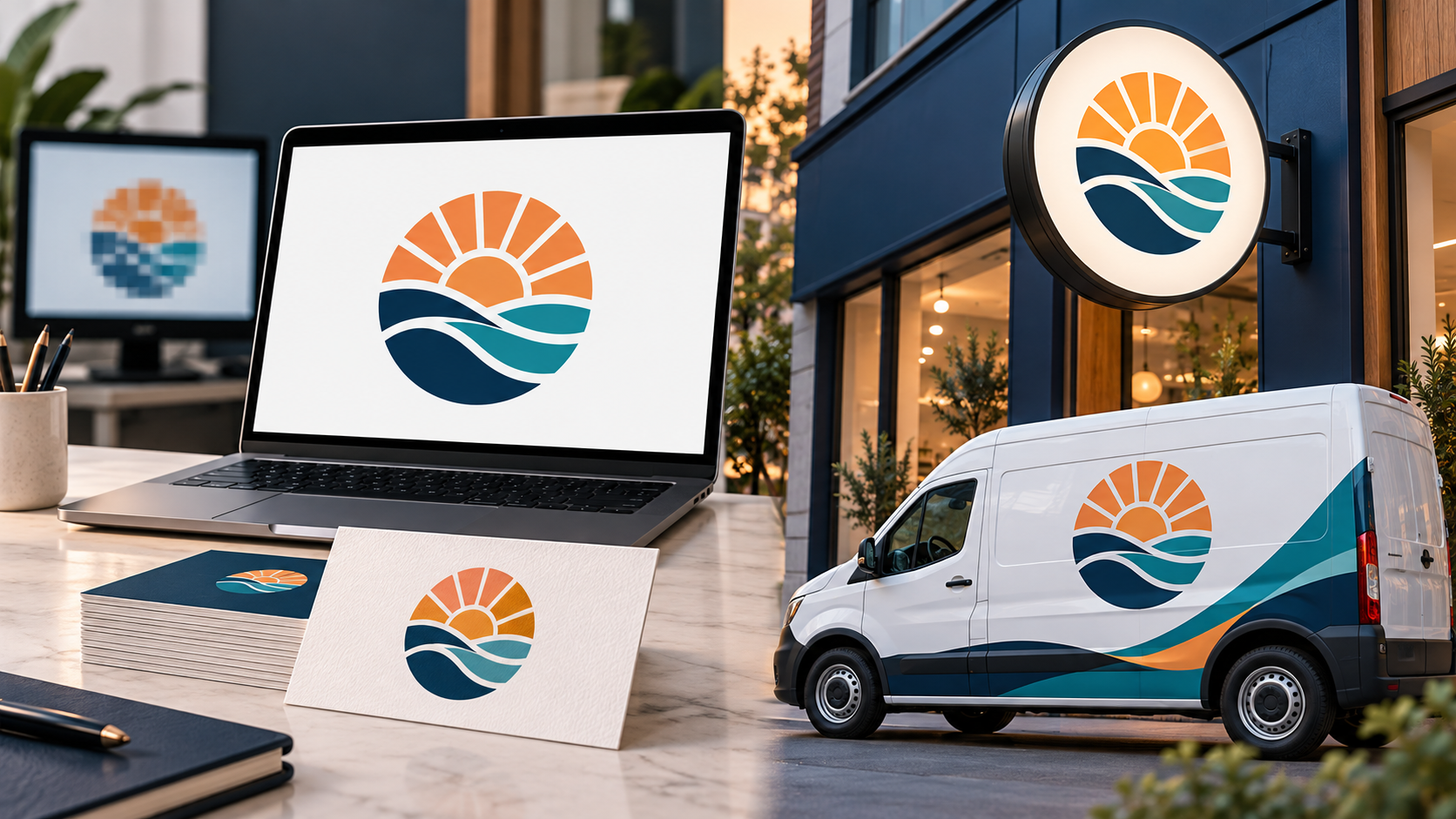
A logo can look sharp in a design app and blurry the moment it appears on a website, social profile, sign, or printed shirt. The problem is usually not the logo idea. It is a mismatch between the file format, the pixel dimensions, and the way the artwork is being placed. The good news is that most blurry-logo problems are easy to diagnose once you know what to inspect.
This guide explains why logos lose clarity, how to fix the file you already have, and what to request from a designer so the mark stays usable everywhere. The short answer is simple: keep an editable vector master, export the correct raster size for each channel, and never enlarge a small bitmap as a substitute for proper artwork.
Why does my logo look blurry?
Most logos become blurry for one of five reasons: a low-resolution PNG or JPG was enlarged, a compressed image was downloaded from a preview, the file was exported at the wrong dimensions, a website resized it poorly, or the original artwork contains raster effects that were never rebuilt for production. A logo is often reused at radically different sizes, from a tiny browser icon to a large vehicle graphic. One fixed pixel file cannot serve all of those jobs perfectly.
A raster image is made from a grid of pixels. When you enlarge it beyond the detail captured in that grid, the software has to invent intermediate pixels, producing soft edges or visible blocks. Adobe’s raster-versus-vector explanation describes the practical difference: vector artwork is built from scalable paths, while raster artwork is resolution-dependent.
1. Find the original vector master
Look for an AI, SVG, EPS, or editable PDF file from the designer. These formats can preserve paths, shapes, and type that remain crisp when resized. The exact format accepted by a printer or sign shop varies, so ask which one they prefer. If the only file you have is a JPG taken from a web page, do not keep exporting it at larger dimensions; that only creates a larger blurry file.
SVG is especially useful for responsive websites and interfaces. The W3C describes Scalable Vector Graphics as a format for two-dimensional graphics, which is why an SVG mark can adapt to different display sizes without the same pixel enlargement problem. Some platforms strip SVG uploads for security or compatibility reasons, so keep PNG fallbacks ready.
2. Export the right raster size
When a platform needs a PNG or JPG, start from the vector master and export to the dimensions the placement actually needs. For a website header, measure the rendered box in CSS pixels and export at a sensible high-density size rather than guessing. For a social avatar, export a square version with comfortable clear space around the mark. For a favicon, simplify the artwork first; shrinking a detailed combination mark often creates muddy shapes.
Do not confuse a file’s nominal DPI metadata with usable detail. A 500-pixel image cannot become a genuinely detailed 2,000-pixel image just because an export dialog says 300 DPI. Pixel dimensions and the intended physical size work together for print. Ask your printer for the required dimensions and production profile, then export directly from the vector source.
3. Check the way the website displays it
A perfectly exported file can still look soft if a site stretches it. Inspect the image element in the browser and compare its rendered width with the file’s intrinsic width. If a 400-pixel PNG is being displayed at 1,200 pixels, replace it with a larger export or an SVG. Avoid repeatedly resizing the same image in a design tool, CMS, and social platform; each conversion can add compression or interpolation.
Use the correct aspect ratio and transparent background for the placement. A logo forced into a narrow banner may appear blurry because the system is scaling it to fit a box with different proportions. Provide horizontal, stacked, icon-only, light, dark, and one-color versions so the layout does not have to distort the artwork.
4. Look for compression and preview files
Messaging apps, stock previews, and some content-management systems compress images to save space. A screenshot is also a preview, not a production asset. Download the original attachment or request a fresh export. If the logo has a transparent background, prefer PNG for raster use; if it is a photographic lockup, JPG may be appropriate. WebP can be efficient for websites, but retain the source PNG and vector master for future edits and print.
Check that transparency has not been replaced by a white matte. A matte can create a faint halo when the logo is placed on a colored background, which people sometimes mistake for blur. Export with transparency from the vector source and inspect the edge against both light and dark colors.
5. Test small details before you blame the file
Sometimes a logo is technically sharp but visually unclear because it is too complex for the size. Thin outlines, tiny taglines, tight counters, and closely spaced letters can merge when reduced. Use the practical checks in our guide to testing whether a logo is too complicated. A simplified small-size mark is often a better solution than an enormous export.
Make a small-size proof in the actual context: a phone header, app tile, profile image, embroidered cap, or invoice footer. Remove the tagline if it cannot be read at the intended size. Increase spacing, thicken a stroke, or switch to an icon-only version. These are design decisions, not file-quality failures.
Print-specific fixes for shirts, signs, and packaging
For close-view print such as business cards and brochures, your printer may request high-resolution raster artwork or, preferably, vector artwork. For a large sign, the viewing distance changes the resolution requirement, but a vector master still gives the production team the most flexibility. Ask about bleed, color mode, spot colors, overprint, and whether fonts should be outlined. Do not convert a low-resolution web PNG into a PDF and assume it has become print-ready.
Embroidery and screen printing add another layer of simplification. Thread and ink cannot reproduce every hairline or gradient. Request an embroidery-friendly or one-color version and approve a physical proof when the application matters. A crisp digital logo may need slightly heavier shapes to survive fabric or a rough sign surface.
A delivery checklist for your logo files
Ask for a small, organized package rather than a folder full of unexplained exports:
- Vector master: SVG plus AI, EPS, or editable PDF where available.
- Raster exports: transparent PNG in useful sizes, plus JPG versions for backgrounds that do not support transparency.
- Color variants: full color, black, white or reversed, and one-color versions.
- Lockups: horizontal, stacked, and icon-only arrangements with clear-space guidance.
- Usage notes: minimum size, background examples, approved colors, and files that should not be stretched.
A clear logo design brief helps a designer anticipate these requirements before the final files are delivered. If you are launching a new business, the new-business branding checklist can help you collect the logo, colors, fonts, and templates your team will need.
When you need a redraw instead of an export
If no vector source exists, a designer can redraw the logo as clean paths. This is not the same as pressing “upscale.” The designer rebuilds geometry, spacing, and curves so the mark can be exported at any size. Redrawing is especially worthwhile when the logo is important to signage, vehicles, packaging, or a growing brand system.
Use a professional logo service such as 48hourslogo’s logo design process when the current file is a screenshot, the lettering is inconsistent, or the mark has never worked in one color. Bring the existing logo, examples of where it looks blurry, and the exact applications you need. That context helps the designer solve the real production problem.
A five-minute blur diagnosis
Open the file at 100 percent, then inspect it at the size where customers will see it. If the edges are already soft at 100 percent, find a better source. If the file is sharp but soft only after upload, compare the rendered dimensions and compression settings. If only tiny details disappear, simplify the small-size version. If the mark is sharp on screen but poor in print, ask the printer about color, resolution, and production requirements. Document the fix so the same mistake does not return in the next campaign.
A blurry logo is rarely a mystery. Start with the vector master, export for the actual use, check the display box, and simplify details when necessary. Once those habits are part of your brand workflow, your logo can stay recognizable on a phone, a storefront, a uniform, and every size in between.